Keys, Wallets, and Jump Hosts: Understanding SSH from First Principles
A clear, analogy-first guide to SSH key authentication, the SSH agent, bastion hosts, ProxyJump vs agent forwarding, and the scripting traps that catch everyone eventually.
Keys, Wallets, and Jump Hosts: Understanding SSH from First Principles
I spent fifteen years as an accountant before moving into DevOps. When I first encountered SSH, I did what most people do — I copied commands from Stack Overflow until things worked, without really understanding why. That approach eventually breaks down, usually at the worst possible moment: a bastion host, a private network, a script that works interactively but fails in automation.
This post is the explanation I wish I'd had early on. No assumed background. Concrete analogies first, mechanics second.
The Padlock Analogy
Before we touch a single command, here's the mental model that makes everything else click.
Imagine you have a padlock that you own. You keep the key on your keychain — only you have it. But you can hand out copies of the open padlock to anyone. They can't open it (they don't have the key), but they can lock things shut with it.
Now imagine you want to receive a secure package from someone. You send them your open padlock. They put the package in a box, click your padlock shut, and send it back. Nobody can open that box except you — because you're the only one with the key.
This is exactly how SSH public/private key authentication works:
- Your private key = the key on your keychain. Never leaves your possession.
- Your public key = the open padlock. You can give it to any server you want to access.
authorized_keyson the server = the server's collection of padlocks it recognises.
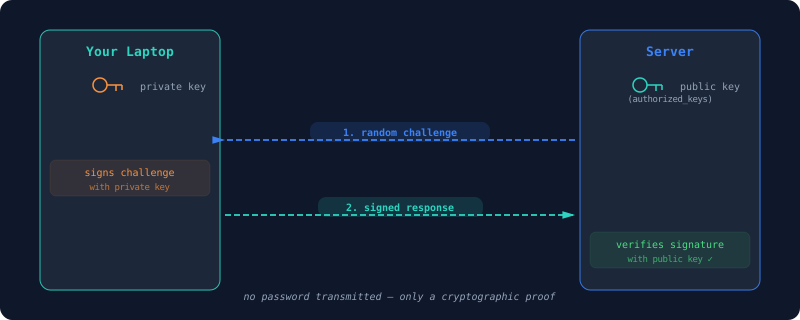
When you connect, the server sends you a random challenge. Your private key signs that challenge, and the server verifies the signature using your public key (the padlock). Only someone with the matching key can produce a valid signature. No password transmitted, no secret shared — just a cryptographic proof that you hold the key.
Here's what that looks like in practice:
Keep this analogy in mind. Everything that follows is just variations on it.
Your Keys Live in ~/.ssh
Your SSH key pair sits in your home directory:
~/.ssh/
  id_ed25519        ← private key (the key on your keychain)
  id_ed25519.pub    ← public key  (the open padlock)
  authorized_keys   ← padlocks this machine accepts (server side)
  known_hosts       ← fingerprints of servers you've verified
  config            ← shortcuts and defaults for SSH connections
SSH is strict about permissions on these files — if they're too permissive, it refuses to work:
chmod 700 ~/.ssh
chmod 600 ~/.ssh/id_ed25519
chmod 644 ~/.ssh/id_ed25519.pub
Wrong permissions = SSH refuses to connect with a big UNPROTECTED PRIVATE KEY FILE warning. It's loud, but easy to miss in noisy terminal output — this trips up a lot of people early on.
The SSH Agent: Your Key Wallet
Here's something that confused me for a long time. Your private key file on disk is usually protected by a passphrase. So every time you SSH somewhere, SSH would need to decrypt the key — meaning you'd have to type your passphrase every single time.
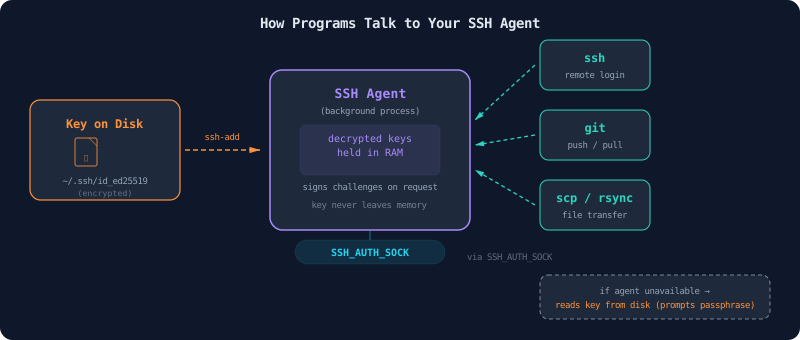
The SSH agent solves this. It's a small background process that holds your decrypted private key in memory (RAM) after you unlock it once. When SSH needs to authenticate, it doesn't touch the key file on disk at all — it asks the agent to sign the challenge. The agent does the signing. The key itself never leaves the agent's memory.
You interact with the agent like this:
# Check if an agent is running and what keys it has loaded
echo "$SSH_AUTH_SOCK"    # should print a socket path like /tmp/ssh-xxxxx/agent.1234
ssh-add -l              # lists loaded keys

# Start an agent if one isn't running
eval "$(ssh-agent -s)"

# Load a key into the agent (enter passphrase once)
ssh-add ~/.ssh/id_ed25519
ssh-add ~/.ssh/rke2-test.pem
Your shell knows how to reach the agent through an environment variable:
SSH_AUTH_SOCK=/tmp/ssh-xxxxx/agent.1234This socket is how ssh, git, scp, and other tools talk to the agent. If this variable isn't set, they fall back to reading the key file directly (and prompting for a passphrase).
What path does SSH_AUTH_SOCK show? It depends on your agent backend. Classic ssh-agent gives you something like /tmp/ssh-xxxxx/agent.1234. On Linux with a GNOME desktop, GNOME Keyring handles SSH agent duties and its socket lives at /run/user/$UID/keyring/ssh. macOS uses its own Keychain at /private/tmp/com.apple.launchd.xxx/Listeners. All three implement the same protocol — ssh, git, and agent forwarding work identically regardless of which one is running. GNOME Keyring and macOS Keychain also persist keys across logins, so you often won't need to ssh-add each session.
The mental model: key file = key stored in a drawer; SSH agent = key wallet you carry around. Programs talk to the wallet, not the drawer.
How Git Uses the SSH Agent (and Why git push Stops Asking for Passwords)
If you've ever set up SSH-based Git access — cloning via [email protected]:... rather than https:// — you've already used the SSH agent without necessarily knowing it.
When you run git push, Git needs to authenticate to GitHub. If your remote is configured with SSH, Git hands off the authentication to the ssh binary, which checks SSH_AUTH_SOCK and asks your agent to sign the challenge. If your key is loaded in the agent, the whole thing happens silently.
This is why:
- First
git pushof the session: SSH can't find the key in the agent, falls back to the key file on disk, and prompts for your passphrase - Every subsequent
git push: completely silent — if you haveAddKeysToAgent yesin your SSH config, the key was added to the agent after that first passphrase prompt - On a fresh machine with no agent:
git pushprompts for passphrase every time (reading from disk each time)
On macOS, the Keychain integration means your SSH key is automatically loaded into the agent at login, so you almost never see passphrases at all. On Linux, it depends on your desktop environment or shell configuration.
You can verify your agent is talking to GitHub correctly:
ssh -T [email protected]
# Hi username! You've successfully authenticated...
If that works, every Git operation over SSH will be seamless.
Bastion Hosts and the Jump Host Problem
In cloud infrastructure, private nodes (your application servers, database hosts, Kubernetes nodes) typically have no public IP address. They can only be reached from within the private network:
Internet
    │
    ▼
Bastion  16.176.x.x   ← the only publicly reachable machine
    │
    │  private network
    ▼
App Server  10.0.10.5   ← no public IP
DB Server   10.0.10.6   ← no public IP
K8s Node    10.0.10.7   ← no public IP
The bastion host (sometimes called a jump host) is the single entry point. Everything else is behind it.
Now you face a question: how do you SSH to 10.0.10.5 from your laptop?
You can't connect directly. But you can connect to the bastion, and the bastion can reach 10.0.10.5. The naive approach is to SSH to the bastion first, then SSH again from there to the private node. That works, but it's tedious and it means your private key needs to exist on the bastion — which is not ideal.
There are two proper solutions.
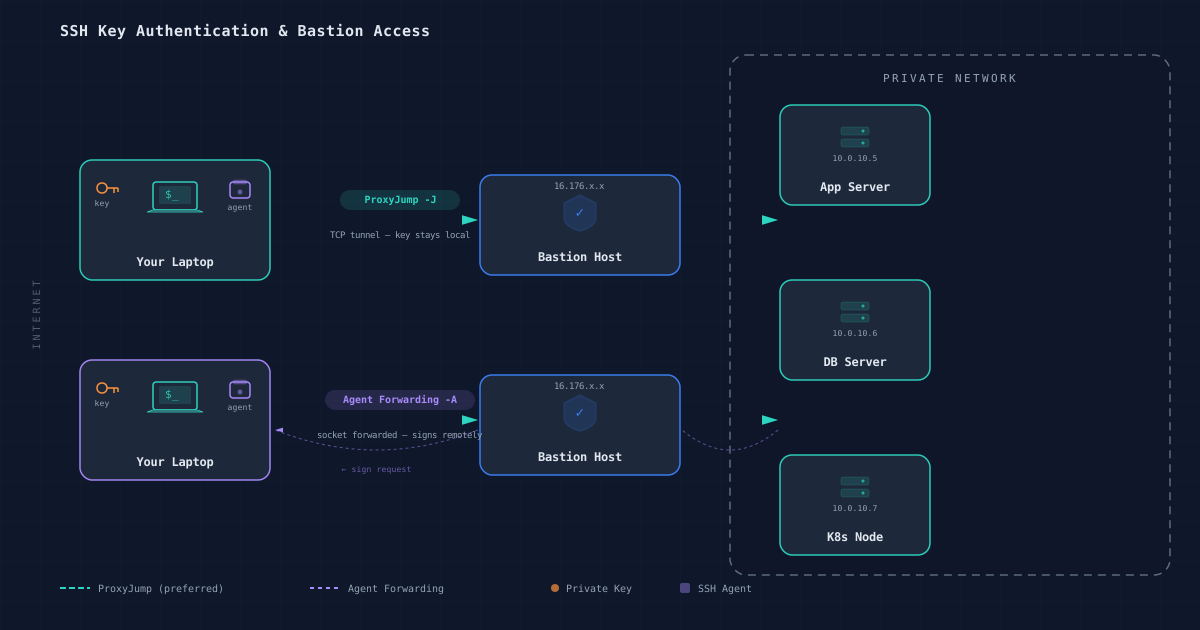
Solution 1: ProxyJump (Tunnelling Through the Bastion)
ProxyJump tells SSH: "to reach this destination, first establish a connection through this jump host, then tunnel through it."
# Connect to private node via bastion — one command, from your laptop
ssh -J ubuntu@BASTION [email protected]
What actually happens:
Your laptop ──TCP──► Bastion:22 ──TCP──► 10.0.10.5:22
SSH opens a TCP tunnel through the bastion to the private node. Authentication to both the bastion and the private node happens using your local key — the key never leaves your laptop.
You can make this permanent in ~/.ssh/config:
Host private-node
    HostName 10.0.10.5
    User ubuntu
    ProxyJump ubuntu@BASTION
    IdentityFile ~/.ssh/rke2-test.pem
After that, ssh private-node just works.
Ansible uses the older ProxyCommand syntax under the hood (which does the same thing):
ansible_ssh_common_args: >-
  -o ProxyCommand="ssh -W %h:%p -i ~/.ssh/key.pem ubuntu@BASTION_IP"
-W %h:%p means "forward raw TCP to the target host and port" — it's plumbing that ProxyJump handles automatically.
When to use: Any time you need to reach private nodes from your laptop. Reliable, clean, key stays local.
Solution 2: SSH Agent Forwarding (ssh -A)
Agent forwarding solves a slightly different problem: you're already on the bastion and you want to SSH onward to private nodes without copying your key to the bastion.
ssh -A ubuntu@BASTION
# Now on bastion...
ssh [email protected]    # ← works, even though your key isn't on the bastion
When you connect with -A, SSH forwards your agent socket over the encrypted connection:
Your laptop
  ssh-agent (holds key)
      │  ssh -A
      ▼
  Bastion
    SSH_AUTH_SOCK → forwarded tunnel back to your laptop's agent
      │  ssh [email protected]
      ▼
  Private node
    ← authentication challenge sent back through tunnel to laptop's agent
    ← signature returned, login succeeds
The bastion never gets a copy of your key. It asks your laptop's agent to do the cryptographic signing via the forwarded socket. Your key doesn't leave your machine.
Prerequisites:
- An SSH agent running on your laptop
- Your key loaded:
ssh-add ~/.ssh/rke2-test.pem - Connect with
-A:ssh -A ubuntu@BASTION
⚠️ The Security Trade-off
Agent forwarding is convenient, but carry this mental note: while your forwarded session is active, an attacker who compromises the bastion can potentially use your forwarded agent socket to authenticate as you to other systems. They still can't steal your private key — but they can use the agent as long as the connection is open.
This is why many teams prefer ProxyJump for interactive access. Agent forwarding is fine for short, trusted sessions, but for production systems, consider the exposure window.
Why -A Is Fragile in Scripts
This one took me a while to diagnose. Agent forwarding with -A works well interactively, but in automation scripts it introduces several failure modes:
eval "$(ssh-agent -s)"   # start a new agent
ssh-add "${KEY_FILE}"    # load key into it
ssh -A ubuntu@BASTION bash <<EOF
  # We're on the bastion now...
  ssh [email protected] "run some command"
EOF
This can fail for reasons that aren't obvious:
AllowAgentForwarding noin the bastion'ssshd_config— many hardened servers disable agent forwarding entirely, and the failure is silent- Key mismatch — the key loaded in your local agent might not be the one the private node expects
- Agent not loaded — in CI environments, the
eval "$(ssh-agent -s)"may not propagate correctly across subshells or pipeline stages - Security exposure — while your forwarded session is active, anyone with root on the bastion can use your agent socket to authenticate as you
For automation scripts that need bastion → private node access, a more reliable pattern is to avoid agent forwarding entirely:
# NODE_IP is expanded by YOUR local shell before the command is sent to bastion
# Bastion receives a fully-formed command with no variables to expand
ssh -i "${KEY_FILE}" ubuntu@"${BASTION_IP}" \
  "scp -o StrictHostKeyChecking=no -i /tmp/rke2-node-key.pem \
   /opt/rke2-artifacts/rke2.linux-amd64.tar.gz \
   ubuntu@${NODE_IP}:/tmp/rke2-install/"
The bastion receives a string with all values already filled in. No agent forwarding, no environment subtleties. Simple and reliable.
For scripts that need the bastion to reach private nodes, the cleanest pattern is:
- Copy your key to the bastion as a temporary file
- Use it explicitly with
-iin commands - Delete it on exit using a
trapclause
This is more explicit than agent forwarding and far less error-prone in scripting contexts.
A Note on zsh vs bash
If you're on zsh (default on macOS since Catalina), watch out for one gotcha. In bash, an unquoted variable containing spaces is word-split by default:
# bash: works — SSH_OPTS is split on spaces into separate flags
SSH_OPTS="-o StrictHostKeyChecking=no -o UserKnownHostsFile=/dev/null"
ssh $SSH_OPTS user@host
In zsh, the same thing doesn't work as expected — zsh treats $SSH_OPTS as a single token, not a sequence of flags. It passes the entire string as one argument to ssh, which can't parse it and fails with an error. This caused me significant confusion when testing scripts interactively in zsh that worked fine when run as bash scripts.
For portability, always use arrays for multi-flag variables, or just write flags inline.
Quick Reference
# Check agent status
echo "$SSH_AUTH_SOCK"    # should print socket path
ssh-add -l              # list loaded keys

# Start agent and load key
eval "$(ssh-agent -s)"
ssh-add ~/.ssh/id_ed25519

# Connect with agent forwarding
ssh -A ubuntu@bastion

# Connect via jump host (no agent needed)
ssh -J ubuntu@bastion ubuntu@private-node

# Verify GitHub SSH auth
ssh -T [email protected]
Tying It Together
SSH looks like a single tool but it's really a small ecosystem: key files on disk, an agent holding them in memory, a socket for programs to talk to that agent, config files for shortcuts, and tunnelling primitives for navigating network boundaries.
Once you have that layered picture, the confusing parts become predictable. Agent forwarding failing in a script? That's an environment variable not making it into a heredoc. git push silently using your SSH key? That's the agent doing its job. Ansible reaching a private node with no extra setup? ProxyCommand in the inventory, tunnelling through the bastion transparently.
The padlock is still the right mental model. You're just learning all the different ways to carry it around.
Written from the perspective of someone who came to DevOps from accounting — interested in how things actually work, not just which commands to run.