Kubernetes Authentication: The Certificate Dance Behind kubectl
How I learned that every kubectl command involves a sophisticated cryptographic handshake (and why that's actually pretty cool)
You know that moment when you run kubectl get pods and it just... works? Yeah, I used to think it was magic. (Spoiler: it's not magic, but it's pretty close.)
Turns out, there's this entire sophisticated dance happening behind the scenes—a cryptographic handshake that would make security experts nod approvingly and casual observers' eyes glaze over. But here's the thing: once you understand how Kubernetes authentication actually works, you stop treating kubeconfig files like mystical talisman files you're afraid to touch.
Let me walk you through what I learned.
The kubeconfig Mystery
When I first set up Kubernetes on my homelab (because apparently I enjoy making my life complicated), I inherited a kubeconfig file that looked like someone had fed random gibberish into a base64 encoder multiple times. It had sections I didn't understand, fields that looked identical, and a length that made me wonder if it was actually storing the entire internet inside it.
Turns out, this wasn't chaos—it was a very organized system containing exactly what I needed to prove my identity to the cluster. Repeatedly. On every single command.
What's Actually in That kubeconfig File?
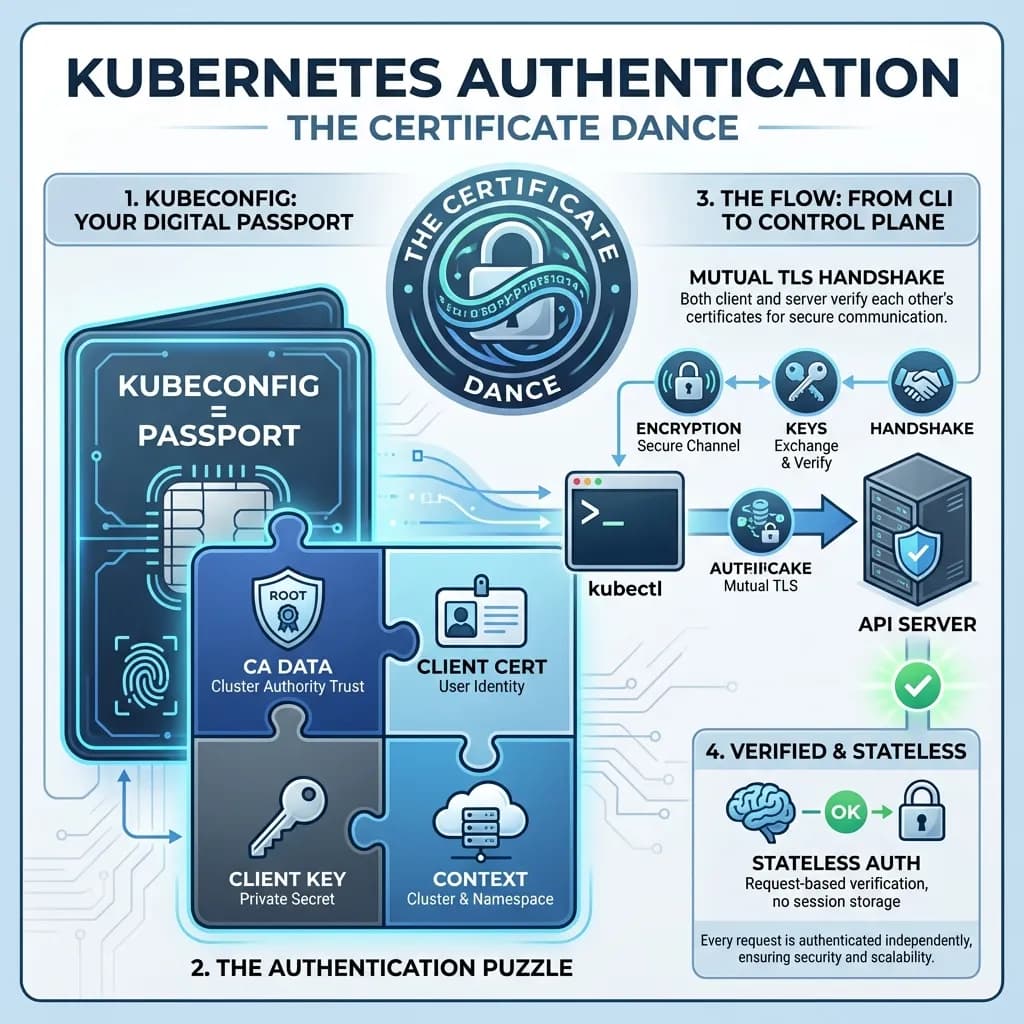
Your kubeconfig is essentially your credential passport for Kubernetes. It contains four key pieces that work together like a very secure puzzle:
Certificate Authority Data (CA)
This is the public certificate of your cluster's Certificate Authority. Think of it like verifying a website's SSL certificate—your kubectl uses it to verify you're actually talking to your legitimate cluster and not an imposter sitting in the middle of your network (which, let's be honest, would be a very specific kind of bad day).
Client Certificate Data
This is your personal certificate. It's like showing your ID card at an airport—except instead of a photo, it contains cryptographic proof of your identity. The cluster checks this against its CA to verify you are actually who you claim to be.
Client Key Data
Here's the really important one: your private key that corresponds to your client certificate. This is used to cryptographically sign your requests to prove they really came from you. This should never leave your machine and definitely shouldn't end up in a public GitHub repository (I mean... don't ask how I know).
Context
This ties everything together—it combines a cluster (which server to connect to plus CA data), a user (your cert plus key), and optionally a namespace. When you run kubectl, it reads the current context to know which cluster to connect to and which credentials to use.
The Authentication Flow: What Actually Happens
Every time you run kubectl get pods, here's the dance that unfolds:
Step 1: kubectl reads your kubeconfig It extracts your client cert, client key, and the CA cert. These are base64-encoded inside the file because... reasons. (Actually, good reasons—it makes them YAML-safe.)
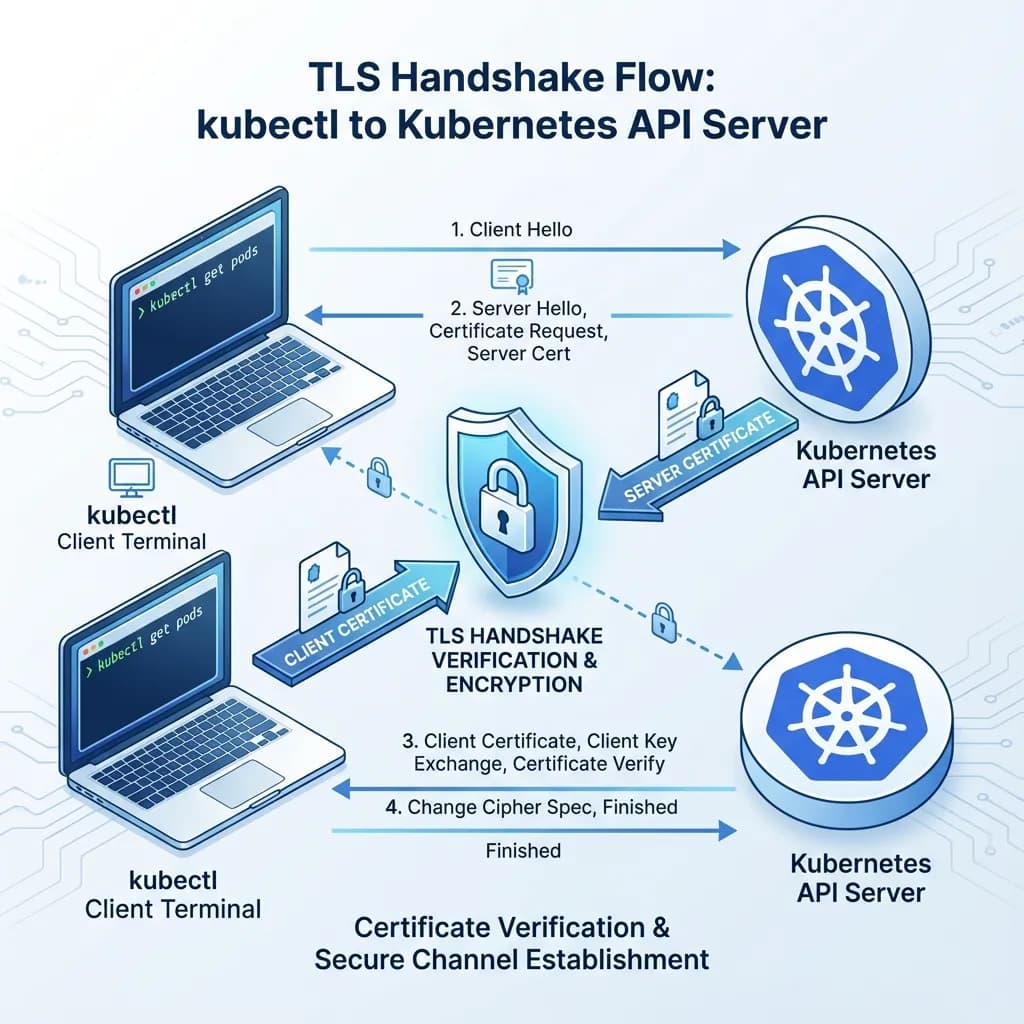
Step 2: TLS handshake begins kubectl makes an HTTPS request to the API server. This is where it gets interesting:
- The API server presents its server certificate
- Your kubectl verifies it using the certificate-authority-data from your kubeconfig
- Your kubectl presents your client certificate
- The API server verifies it was signed by its trusted CA
Step 3: Proving ownership The API server sends random data during the handshake, and your kubectl uses your client private key to sign it. The API server verifies this signature using the public key in your certificate. This proves you possess the private key without ever transmitting it (which is the whole point of public key cryptography).
Step 4: Identity extraction
The API server extracts your username and groups from the certificate's Subject fields. That's where the CN=yash and O=devops stuff shows up. Your identity is literally encoded in the certificate.
Step 5: Authorization check Does this user/group have permission to GET pods? The API server consults its RBAC rules.
Step 6: Response If authorized, you get your pod list. If not, you get a 403 Forbidden (the most humbling error message in Kubernetes).
This entire flow happens on every single kubectl command. There's no session, no token refresh, no "staying logged in." Every command independently proves your identity. Stateless authentication—which is elegantly simple until you need to debug why your certificate expired at 3 AM on a Sunday.
The Certificate Authority Structure: Why Two CAs?
Here's something that confused me for a while: Kubernetes doesn't use just one Certificate Authority. It uses two.
Client CA
Signs client certificates (like yours in the kubeconfig). When you authenticate to the API server, your client cert was signed by this CA. The API server uses the corresponding public certificate to verify client identities.
Server CA
Signs server certificates for the API server itself and other cluster components. When your kubectl connects, the API server presents a cert signed by this CA. Your kubectl uses the server CA public cert to verify the server is actually legitimate and not some impostor.
Why split them apart?
Security isolation: If the client CA is compromised, attackers can create fake users but can't impersonate the API server. If the server CA is compromised, they can MITM the connection but can't create valid user certs. It's like having separate keys for your front door and your car—losing one doesn't lose both.
Different lifecycles: You might want to rotate client certs more frequently than server certs. Or maybe your server certs need to be longer-lived. Flexibility is nice.
Different trust boundaries: Client certs authenticate TO the cluster. Server certs authenticate the cluster TO clients. They have different purposes, so they should have different authorities.
How Certificates Actually Get Created
The process follows standard X.509 PKI (Public Key Infrastructure)—no Kubernetes-specific magic here, just proven cryptographic principles:
1. Generate a private key You create your client private key locally. This stays on your machine. Forever. It's your secret.
2. Create a Certificate Signing Request (CSR) This contains your public key plus identity information (username, groups, etc.). The important part: your private key is not in this request. Only the public key.
3. CA signs the CSR The cluster admin uses the CA private key to sign your CSR. They're basically saying "I verify this person is who they claim to be."
4. Receive signed certificate You get back a certificate containing your public key, identity metadata, and the CA's signature. Now you can use this to prove your identity.
The brilliant part: your private key never leaves your machine and the CA never sees it. The CA only signs a certificate containing your public key. It's cryptographically elegant.
Hands-On: Actually Working with Certificates
Let me walk through the actual commands I use to generate keys, create CSRs, and sign certificates. This is where theory meets reality.
Step 1: Generate Your Private Key
# Generate a 2048-bit RSA private key
openssl genrsa -out user.key 2048

# Or generate a 4096-bit key for stronger security
openssl genrsa -out user.key 4096
This creates your private key file. Keep it secret. Keep it safe. (Seriously, don't commit it to git.)
Step 2: Create a Certificate Signing Request
# Create CSR with username and group
openssl req -new -key user.key -out user.csr -subj "/CN=yash/O=devops/O=admins"
Breakdown:
-new: Create a new CSR-key user.key: Use this private key-out user.csr: Output CSR to this file/CN=yash: Common Name (becomes your Kubernetes username)/O=devops: Organization (becomes a Kubernetes group)/O=admins: You can specify multiple groups by repeating-O
Step 3: Inspect the CSR
# View the CSR in human-readable format
openssl req -in user.csr -noout -text

# View just the subject
openssl req -in user.csr -noout -subject
This is useful for verifying you encoded your identity correctly before sending it off for signing.
Step 4: Sign the CSR (Cluster Admin Step)
The cluster admin (or whoever holds the CA keys) runs this:
# Sign the CSR with CA certificate and key
openssl x509 -req -in user.csr -CA /var/lib/rancher/k3s/server/tls/client-ca.crt \
  -CAkey /var/lib/rancher/k3s/server/tls/client-ca.key \
  -CAcreateserial -out user.crt -days 365
Breakdown:
-req -in user.csr: Input is a CSR-CA client-ca.crt: Use this CA certificate-CAkey client-ca.key: Use this CA private key for signing-CAcreateserial: Create a serial number file-out user.crt: Output signed certificate-days 365: Certificate valid for 365 days (change this at your peril)
Step 5: Verify the Signed Certificate
# View certificate details
openssl x509 -in user.crt -noout -text

# Check who issued the certificate
openssl x509 -in user.crt -noout -issuer

# Check certificate subject (your identity)
openssl x509 -in user.crt -noout -subject

# Check expiration date (important!)
openssl x509 -in user.crt -noout -dates

# Verify certificate was signed by CA
openssl verify -CAfile /var/lib/rancher/k3s/server/tls/client-ca.crt user.crt
That last command is your friend when debugging "why isn't this certificate working?" scenarios at 2 AM.
Step 6: Extract the Public Key
# Extract public key from your certificate
openssl x509 -in user.crt -pubkey -noout > user-public.key

# Or extract it from your private key
openssl rsa -in user.key -pubout -out user-public.key
Step 7: Base64 Encode for Kubeconfig
# Encode certificate for kubeconfig
cat user.crt | base64 -w 0

# Encode private key for kubeconfig
cat user.key | base64 -w 0

# Encode CA certificate for kubeconfig
cat /var/lib/rancher/k3s/server/tls/client-ca.crt | base64 -w 0
The -w 0 flag removes line wrapping, giving you a single line of base64. This is important for YAML files.
Step 8: Decode Base64 from Kubeconfig
When you need to inspect what's actually in your kubeconfig:
# Decode certificate-authority-data from kubeconfig
kubectl config view --raw -o jsonpath='{.clusters[0].cluster.certificate-authority-data}' | base64 -d

# Decode client-certificate-data
kubectl config view --raw -o jsonpath='{.users[0].user.client-certificate-data}' | base64 -d

# Decode and inspect certificate directly
kubectl config view --raw -o jsonpath='{.users[0].user.client-certificate-data}' | base64 -d | openssl x509 -text -noout
This is invaluable when debugging "why is kubectl rejecting my authentication?" scenarios.
Step 9: Create Kubeconfig Entry
Once you have your signed certificate and key:
# Set cluster info
kubectl config set-cluster my-cluster \
  --server=https://your-cluster:6443 \
  --certificate-authority=/path/to/ca.crt \
  --embed-certs=true

# Set user credentials
kubectl config set-credentials yash \
  --client-certificate=user.crt \
  --client-key=user.key \
  --embed-certs=true

# Create context
kubectl config set-context yash@my-cluster \
  --cluster=my-cluster \
  --user=yash \
  --namespace=default

# Use the context
kubectl config use-context yash@my-cluster
The --embed-certs=true flag base64-encodes your certificates directly in the kubeconfig file, so you don't have to keep the certificate files around separately. (This is both convenient and a security consideration—your kubeconfig file now contains everything needed to authenticate.)
Bonus: Using Kubernetes' Built-In CSR API
Instead of manually signing with openssl, Kubernetes has a built-in Certificate Signing Request API:
# Create CSR resource
cat <<EOF | kubectl apply -f -
apiVersion: certificates.k8s.io/v1
kind: CertificateSigningRequest
metadata:
  name: yash-csr
spec:
  request: $(cat user.csr | base64 -w 0)
  signerName: kubernetes.io/kube-apiserver-client
  usages:
  - client auth
EOF

# Approve the CSR (requires admin permissions)
kubectl certificate approve yash-csr

# Retrieve the signed certificate
kubectl get csr yash-csr -o jsonpath='{.status.certificate}' | base64 -d > user.crt
This approach is cleaner and integrates with Kubernetes RBAC for controlling who can approve certificates. It's basically Kubernetes saying "you want a certificate? Sure, here's the controlled way to do it." Much better than passing CA keys around.
The Base64 Encoding Thing
All certificate and key fields in kubeconfig are base64 encoded—and here's the thing that tripped me up: they're double-encoded.
Layer 1: The certificate/key is in PEM format (which is already base64-encoded certificate data with those -----BEGIN CERTIFICATE----- headers).
Layer 2: That entire PEM block is base64 encoded again for safe embedding in the YAML file.
So when you look at your kubeconfig and see what appears to be complete gibberish, it is—intentionally. Two layers of encoding for data safety and portability. It's why decoding kubeconfig values is such a fun parlor trick.
The Security Implications Worth Understanding
Understanding this flow reveals some really important security aspects:
-
CA private keys are fortress-protected: They live securely on control plane nodes and are never distributed to clients. If someone has your kubeconfig, they can't forge certificates because they don't have the CA private key.
-
Your private key is your identity: It proves ownership without ever being transmitted. If someone steals it, they own your identity. That's why it should be treated like your actual house key.
-
Authentication is stateless and expirable: If your cert expires or is revoked, you immediately lose access. There's no grace period, no "oh the server forgot to update the revocation list." Expired cert = no access.
-
Every command independently proves identity: There's no session management, no token refresh. Each kubectl command cryptographically proves it's from you. This is elegant and simple until you realize you need to rotate certificates.
For K3s Users (Like Me)
If you're running K3s on a Proxmox cluster or your own homelab (like I am), K3s automatically generates these certificates during setup:
- Kubeconfig:
/etc/rancher/k3s/k3s.yaml - Client CA key:
/var/lib/rancher/k3s/server/tls/client-ca.key - Server CA key:
/var/lib/rancher/k3s/server/tls/server-ca.key
This is convenient until you need to understand what K3s is actually doing under the hood. Then it's nice to know where to look.
Final Thoughts
Kubernetes certificate-based authentication is an elegant system built on proven cryptographic principles. It's not flashy—there's no OAuth, no third-party identity providers, no fancy JWT tokens. Just good old-fashioned X.509 certificates doing what they do best: proving identity in a cryptographically sound way.
Once you understand how the pieces fit together—the dual CAs, the mutual TLS handshake, the signature-based proof of ownership—troubleshooting authentication issues becomes less "why is everything broken?" and more "oh, the certificate expired, I need to rotate it."
Whether you're debugging authentication issues at 2 AM, configuring RBAC policies, or setting up new users on your cluster, this foundation helps you understand what's happening under the hood.
And honestly? That's pretty cool.
Have you run into certificate issues in your Kubernetes setup? Did I miss anything or get something wrong? I'd love to hear about your experiences—hit me up with feedback or corrections.
Visual Summary